Overview
Bank feeds automatically import transactions from your bank into Beeswax, saving you from manually entering or uploading CSV statements. Once connected, transactions flow in automatically and appear in the Bank Feed Allocations queue for categorization.
Beeswax supports two bank feed providers today:
| Provider | Regions | Connection Type | How You Connect |
|---|---|---|---|
| Revolut Business | UK, EU, US, AU | OAuth (certificate-based), one bank account at a time | Enrol Beeswax once in your Revolut Business account, then authorise per bank account |
| Redbark | AU | Consumer Data Right (CDR) Representative of Fiskil — paste one API key, map many accounts | See Connecting Redbark Bank Feeds for the full guide |
Each Beeswax bank account can have only one external feed connected at a time. To switch providers for a given bank account, disconnect the existing feed first.
Provider options are filtered by your account region. For example, Redbark is shown only for Australian accounts, while Revolut can appear for supported Revolut Business regions.
Note: If you need a different bank connected, contact support — we can prioritise new provider integrations based on demand.
Before You Start
Before connecting a bank feed, make sure you have:
- A bank account set up in Beeswax — You need an Asset-type transaction account marked as a bank account. Create one from the Chart of Accounts if you haven't already.
- The correct permissions — Only Owners, Super Admins, and Accountants can connect bank feeds.
- Access to your banking provider — You will need to log in to your bank to generate credentials or authorise the connection.
Connecting Revolut Business
Revolut Business does not use a simple pasted API token. Every Revolut Business customer who wants to connect a third-party app like Beeswax has to enrol the app's public certificate in their own Revolut dashboard first — a regulatory requirement under Open Banking rules. Revolut then issues a Client ID unique to your account. After that one-time setup, connecting individual bank accounts is a normal OAuth flow.
This is a one-time setup per Revolut Business organisation. After enrolment, connecting additional accounts is a single-click OAuth flow.
Part A — Enrol Beeswax in your Revolut Business account (one time)
Do this once per Revolut organisation. If someone on your team has already enrolled Beeswax and you know the Client ID, skip to Part B.
1. Download Beeswax's public certificate
Open this link in your browser (right-click → Save, or click to download): Download Beeswax's Revolut certificate
That file, beeswax-revolut.cer, is the public half of Beeswax's signing keypair. Every Beeswax customer uploads the same file — Beeswax keeps the private half on our servers and never shares it. The certificate is what tells Revolut "a request was genuinely signed by Beeswax."
2. Open the API settings in Revolut Business
- Log in to business.revolut.com
- Go to Settings (gear icon, lower-left) → APIs
- Make sure the Business API tab is selected (not Merchant API)
- Click Add API certificate
3. Fill in the Add Certificate dialog
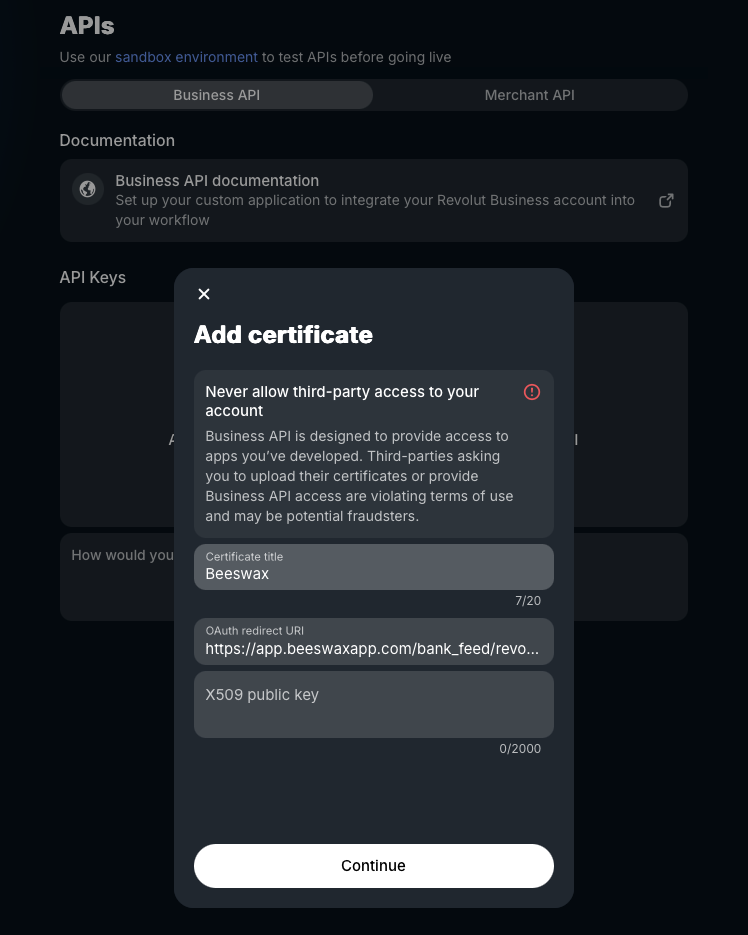
You will see three fields:
| Field | What to enter |
|---|---|
| Certificate title | Enter Beeswax. This is just a label shown in your Revolut dashboard. |
| OAuth redirect URI | https://app.beeswaxapp.com/bank_feed/revolut/callback — paste this exactly, no trailing slash. It has to match Beeswax's callback URL character-for-character or the connection will fail. |
| X509 public key | Open the beeswax-revolut.cer file you downloaded in Step 1 in any text editor (TextEdit, Notepad, VS Code). Copy its entire contents including the -----BEGIN CERTIFICATE----- and -----END CERTIFICATE----- lines, and paste here. |
Never paste a certificate sent to you by someone claiming to be from a third party — Revolut's own warning in this dialog is real, and impersonation of integration providers is a known fraud vector. Only use the certificate you downloaded directly from app.beeswaxapp.com (step 1 above).
Click Continue.
4. Copy your Client ID
Revolut now shows a screen with:
- A Client ID (a UUID-like string, e.g.
abc12d3e-4567-8901-f234-5g6h7i8j9k01) - An Enroll or Authorise button
Copy the Client ID — you'll paste it into Beeswax in Part B. The Client ID is unique to your Revolut organisation; every Beeswax customer gets a different one, even though we all upload the same certificate.
You don't need to click Enroll yet — Beeswax will kick off enrolment automatically the first time you connect a bank account (Part B).
Why is it set up this way? Revolut is a regulated bank, and regulated financial APIs in Europe (PSD2 / Open Banking) require cert-based app identity and per-customer consent — a pasted API key isn't compliant. The tradeoff: a bit more setup up front, in exchange for a connection that you can revoke cleanly without affecting anyone else.
Part B — Connect a bank account in Beeswax
Do this for each Revolut bank account you want to sync. It takes about 30 seconds per account.
- In Beeswax, go to Money > Bank Accounts.
- Find the bank account card for the Revolut account you want to connect. Make sure its BSB / sort code is set to Revolut's real code (
04-00-75in the UK,084009519in the US,REVOLT21in the EU,772-772in Australia) — Beeswax uses this to detect the provider. If it's set to anything else, the Connect button won't appear. Edit the account and update it if needed. - In the card footer, click the Connect Bank Feed button (or open the card's three-dots menu and choose Bank Feed). A dialog opens.
- In the dialog, paste your Client ID (from Part A step 4) into the Client ID field. Each Revolut organisation has its own Client ID, and for security reasons Beeswax does not pre-fill it — keep it somewhere safe if you'll be connecting multiple Revolut accounts.
- Click Connect Securely.
You will be redirected to Revolut's consent page. Sign in if prompted. Revolut will ask you to confirm that you want to grant Beeswax read-only access to this account. Click Authorise.
You'll be returned to Beeswax, and the bank feed status will show as Connected. Your transactions start importing immediately.
Your money is safe — Beeswax enforces read-only on our end
Revolut's consent screen lets you grant "read-only" access, and Beeswax always requests exactly that when starting the connection. But that setting lives in Revolut's dashboard, and Revolut doesn't always enforce scope restrictions on its Business API as strictly as you might expect.
So we don't rely on it. Beeswax's own code will refuse to make anything other than read requests to your Revolut account. Every outbound call is routed through a guard that blocks
POST,PUT,PATCH, andDELETEat the network layer — if any Beeswax code ever tried to create a payment, move money, modify a counterparty, or change an account setting, the request would fail inside Beeswax before it ever reached Revolut. There is no setting in Beeswax, no admin toggle, no account upgrade that enables write access to Revolut. It simply cannot happen.You can verify this yourself: on the Revolut side, look at your API logs under Settings → APIs — every call from Beeswax will be a
GET. If you want a deeper technical audit of the read-only enforcement, contact support and we'll walk you through the relevant source code.This means the only data Beeswax can see is:
- Your transaction history
- Account balances
- Account names and currencies
It cannot:
- Move money in or out of your Revolut accounts
- Create payments, standing orders, or transfers
- Modify counterparties, account details, or settings
- Grant anyone else access to your Revolut account
Your connection is durable. Your Revolut connection isn't tied to Beeswax's internal security keys — so routine security housekeeping on our end (password rotations, key rotations, employee access changes) happens invisibly and won't force you to reconnect. Once you've completed the one-time certificate upload in Part A, your bank feed keeps working until you either revoke it yourself in Revolut or your certificate's natural 5-year expiry comes around.
Revolut Connection Notes
- Revolut access tokens expire every 40 minutes. Beeswax refreshes them automatically in the background using the long-lived refresh token — you don't need to do anything.
- Refresh tokens expire after 90 days of inactivity. If no sync happens for 90 days (unusual — Beeswax syncs daily), you'll be prompted to reconnect.
- Only completed transactions are imported. Pending transactions are excluded until they clear.
- If you revoke the consent in your Revolut dashboard (Settings → APIs → your certificate → Access), the feed will start failing. Reconnect from Beeswax to restore it.
After Connecting
Once your bank feed is connected:
- Automatic imports — New transactions are fetched automatically in the background
- Manual refresh — Click Refresh Transactions on the bank feed status page to trigger an immediate sync
- Connection health — Customer-scoped feeds such as Redbark show their own health card under Settings > Bank Feeds, including last poll, recent activity, and mapped-account status
- Allocations — Imported transactions appear in the Bank Feed Allocations page. From there you can match them to existing invoices and expenses, categorize them with AI assistance, or process them manually. See the Bank Feed Allocations help page for details.
- Duplicate protection — Beeswax tracks each transaction's unique ID from the bank, so the same transaction will not be imported twice even if sync periods overlap
- Balance updates — Your bank account balance in Beeswax is updated with the balance reported by the bank feed provider
Multiple Bank Accounts
You can connect bank feeds to multiple Revolut Business bank accounts. Each connection is independent — connecting or disconnecting one account does not affect others. The one-time Part A enrolment covers every Revolut account you later connect; you only repeat Part B per account.
Disconnecting a Bank Feed
To disconnect a bank feed:
- Navigate to the bank account's feed status page
- Click Disconnect
- Confirm the disconnection
Disconnecting removes the stored credentials but does not delete any previously imported transactions or allocations. You can reconnect at any time.
You can additionally revoke the grant inside your Revolut Business dashboard under Settings → APIs → [your certificate] → Access. This stops Beeswax from calling the API even before you disconnect in Beeswax.
Troubleshooting
| Issue | Solution |
|---|---|
| "No bank feed providers are currently configured" | Your Beeswax instance doesn't have Revolut enabled. Contact your administrator or Beeswax support. |
| Connection shows "Error" status | The stored credentials may be invalid or revoked upstream. Try disconnecting and reconnecting. Also check that the certificate has not been deleted from your Revolut API settings. |
| Transactions not appearing after connect | Click Refresh Transactions to trigger a manual sync. The first sync can take a moment. |
| "OAuth redirect URI mismatch" | The redirect URI on your Revolut certificate has to match Beeswax's callback URL exactly. Re-check that you pasted the URL from Part A step 3 with no extra spaces or trailing slash. |
| "client_assertion invalid" | The certificate you pasted doesn't match the one Beeswax is using to sign requests. Download the certificate from Beeswax again, open it in a text editor, and re-paste its contents into Revolut's X509 public key field. |
| Consent page shows "Application not found" | The Client ID you pasted into Beeswax doesn't match the ID Revolut issued. Copy it again from Revolut (Settings → APIs → your certificate) and reconnect. |
| Duplicate transactions | Beeswax de-duplicates by external transaction ID. If you see duplicates, they may have different IDs from the bank (e.g. amended transactions). Contact support. |
Permissions
| Action | Owner | Super Admin | Manager | Accountant | Basic | Client |
|---|---|---|---|---|---|---|
| Connect bank feed | Yes | Yes | No | Yes | No | No |
| Disconnect bank feed | Yes | Yes | No | Yes | No | No |
| Refresh transactions | Yes | Yes | No | Yes | No | No |
| View feed status | Yes | Yes | No | Yes | No | No |
Under the hood — keys and tokens explained
You don't need to read this section to use the bank feed. It's here for anyone curious about how the connection stays secure and what's actually happening behind the scenes — and as a reference if you ever see technical language in a support reply.
The Revolut integration has four different "keys" or "tokens", and it's worth knowing which is which because they do very different things. Only one of them ever requires your attention.
| Name | What it does | How long it lasts | Do you ever have to do anything? |
|---|---|---|---|
| Access token | Lets Beeswax actually call Revolut to fetch your transactions | About 40 minutes | Never. Beeswax refreshes it automatically in the background every time it needs one. |
| Refresh token | Lets Beeswax get a fresh access token when the old one expires | 90 days of inactivity | Effectively never. Since Beeswax syncs daily, this is used constantly and never expires in practice. You'd only ever see it expire if your feed hadn't synced for three straight months. |
| Certificate / Client ID | The credentials Revolut issues you during enrolment (Part A above). Proves to Revolut that "this app is Beeswax and this customer authorised it." | 5 years | Once, during enrolment. After that, nothing until the 5-year renewal — at which point you'll redo the upload-and-paste steps from Part A. Beeswax will email you with plenty of notice. |
| Beeswax's internal encryption key | How Beeswax scrambles your Revolut tokens inside our own database so that even if someone got a copy of the database, the tokens would be unreadable | Rotated by Beeswax whenever we feel like it | Never. You don't see it, don't configure it, and we've deliberately built rotations so they happen without breaking your connection. |
The short version
- You set up the Revolut connection once. Upload a certificate, paste a Client ID, authorise the consent. That's it.
- Everything that expires quickly is refreshed automatically. Access tokens churn every 40 minutes, but Beeswax handles all of that without you ever seeing it.
- The only time you'll hear from us about your Revolut connection again is at the 5-year certificate renewal, or if you yourself revoke the connection in Revolut.
- Beeswax can't move your money — see "Your money is safe" above. Read-only is enforced on our end, independent of what Revolut does.
- Rotating our internal security keys doesn't affect you. If we ever change our database encryption key for security hygiene (which we do periodically), your connection keeps working. We build this stuff to be invisible.
If you ever want the fuller technical picture, or you're doing a security review on behalf of your organisation, contact support — we're happy to walk through the implementation in as much detail as you want.