Overview
Projects are the foundation of Beeswax. Almost everything — tasks, milestones, invoices, expenses, quotes, time entries, files, team members, and project documents — lives within a project. Each project belongs to a client business and is managed by a team member.
The typical workflow is:
- Create a project and assign it to a client business
- Add tasks, milestones, and team members
- Create quotes, invoices, and track expenses
- Close the project when all work and billing is complete
Projects can be filtered by status, company, or manager and are displayed with key metrics (task counts, invoice totals, etc.) visible at a glance.
Key characteristics of projects:
- Business-linked — Every project is associated with a business (company), which determines who is billed for the work.
- Auto-numbered — Projects can receive sequential numbers automatically from your account's numbering settings.
- Status-tracked — Projects move through configurable statuses (e.g. Prospective, In Progress, Closed) to reflect their current stage.
- Manager-assigned — Each project can have a designated manager responsible for oversight.
- Privacy-controlled — Projects can be restricted so only specific team members can see them.
When the Work menu appears
The Work menu, the Task and Milestone entries of the create-new menu, and the task widgets on the dashboard appear once your business has an active project, and disappear when it has none. A business that only keeps its books in Beeswax never sees them. The create-new menu always offers Project, so the way in is always one click away; closing your last project hides the Work side again.
Creating a Project
Click New Project from the projects list to open the creation modal.
Fields
| Field | Required | Description |
|---|---|---|
| Project Title | Yes | A descriptive project name. |
| Business | Yes | The client business this project is for. Select an existing business, or type a new name and select it from the list to create one on the fly. |
| Who's Responsible? | No | The team member responsible for this project. Defaults to the current user. |
| Status | No | The initial project status. Defaults to the account's default status. |
Note: The project's base cost defaults to 50 behind the scenes and can be adjusted later from project settings.
Important Notes
- Every paid plan includes all the projects a real business needs — there is no per-tier project limit, just a generous fair-use boundary on concurrently active projects (see the Plan Limits article). The Free plan limits how many active projects you can have open at once — if you reach the quota you will need to close a project or upgrade your plan.
- Projects can only be created by users with manage permissions (Owner, Super Admin, Manager, Accountant).
- Each user can make a project their own default with the My Default Project switch in Edit Project, or from the My Default Project field in User Settings. It is pre-selected when they create new tasks. When you have not chosen one — or the project you chose has since been closed — new tasks fall back to the account's default project, and an amber dot appears on your avatar and beside User Settings until you set one.
Project Dashboard
When you open a project, you see the project dashboard — a central hub showing key information at a glance.
Dashboard Widgets
| Widget | Description |
|---|---|
| Tasks | Summary of open and completed tasks in the project. |
| Milestones | Overview of task lists and their completion status. |
| Invoices | Invoice count and total amounts. |
| Quotes | Quote count and total amounts. |
| Expenses | Expense count and total amounts. |
| Files | Uploaded project files. |
| Team | Project participants and access. |
| Documents | Generated project documents such as call sheets, NDAs, releases, and contracts. |
| Notes | Project notes and documentation. |
| Activity | Recent activity feed showing changes and updates. |
Note: Basic users see a reduced dashboard — only Tasks, Milestones, Files, and Notes widgets are shown.
Navigation Tabs
The project page provides quick access to:
- Overview — project dashboard with summary widgets
- Money — Invoices, Quotes, and Expenses for the project
- Tasks — Task list and task board
- Calendar — Milestones and events
- Time — Time entries logged against this project
- Files — Uploaded files and NAS-linked files
- Team — Project participants, privacy, and document visibility
- Documents — Generated project documents
- Notes — Project notes
- Reports — Financial summary, products report, and other reports
- Activity — Recent activity feed
Project Statuses
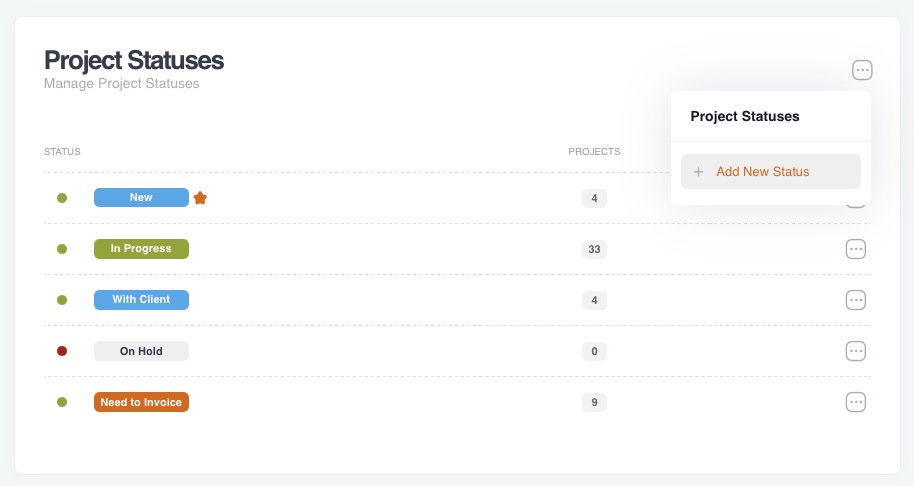
Projects use a status system to track their current stage. Statuses fall into two categories: system statuses that are fixed and always present, and custom statuses that you can create, edit, and delete.
System Statuses
Every account has the following system statuses built in. These cannot be renamed, recoloured, reordered, or deleted.
| Status | Colour | Description |
|---|---|---|
| Prospective | Grey | Initial status for new projects. Default status for new accounts. |
| New | Blue | Project has been confirmed and is starting. |
| In Progress | Green | Active work is being done. |
| On Hold | Grey | Work is paused. |
| Need to Invoice | Green | Work is complete, ready for billing. |
| Closed | Dark | Project is archived. Automatically set when closing a project — cannot be manually assigned. |
| Reopened | Red | Project was closed but has been reactivated. Automatically set when reopening — cannot be manually assigned. |
Default Custom Statuses
New accounts also start with two custom statuses. These behave like any other custom status — they can be renamed, recoloured, reordered, or deleted.
| Status | Colour | Description |
|---|---|---|
| With Client | Blue | Awaiting client feedback or approval. |
| Ready to Close | Red | All work and billing done, ready to archive. |
Customising Statuses
- You can create your own statuses with custom names and colours.
- Custom statuses (including With Client and Ready to Close) can be edited, reordered, and deleted.
- System statuses are locked and cannot be modified or removed.
- Only one status can be marked as the default for new projects.
- Available colours: Primary, Secondary, Success, Danger, Warning, Info.
Automatic Status Changes
- When a project is closed (archived), its status is automatically set to Closed.
- When a project is reopened, its status is automatically set to Reopened.
- These two statuses are managed entirely by the system — they cannot be manually assigned to a project and do not appear in the status picker.
Project List & Filtering
The project list page shows all active projects with key metrics visible at a glance.
Columns Displayed
- Project Title (grouped by client business)
- Status (colour badge)
- Milestones count
- Open tasks count
- Closed tasks count
- Time entries indicator
- Files indicator
- Notes indicator
- Quotes indicator
- Expenses indicator
- Invoices indicator
Filtering Options
| Filter | Description |
|---|---|
| Search | Filter by project name (magnifier icon at the start of the filter row). |
| Status | Filter by one or more project statuses. |
| Business | Filter by the client business. |
| Managed by | Filter by the assigned project manager (admin users). |
Closed Projects
Projects that are closed appear under the Closed tab (top right of the page). The Open tab shows active projects and is the default view. Closed projects can be viewed but not modified (except by Super Admins).
Closing & Reopening Projects
Closing a Project
Closing a project archives it and sets its status to Closed. A closed project becomes locked — most records within it cannot be created or modified.
Closure Requirements:
Before a project can be closed, all of the following must be true:
- All tasks must be completed (no open tasks)
- No active recurring invoices exist on the project
If the project is your account's default project, closing it clears that default. A closed project is also skipped as anyone's personal default: their new tasks fall back to the account's default project, and the amber dot on their avatar asks them to choose a new one.
What Gets Locked:
Once a project is locked:
- Tasks cannot be created, edited, or deleted (completion is still allowed)
- Milestones cannot be created, edited, or deleted
- Invoices, expenses, and quotes cannot be created or modified
- Time entries and events are restricted
Moving Documents to General
Some projects were only ever folders — a financial year, a property, a client — set up before Beeswax could hold an invoice or expense without a project. Those documents can now live in General Income and General Expenses instead, and the project can be closed.
Open the project, then choose Move Documents to General... from the project menu (the item appears only when the project holds documents). Every invoice, expense, refund, manual journal and the payments recorded against them move to General, together with any files attached to them. Nothing is deleted or renumbered: numbers, dates, states and postings are exactly as they were, and the documents keep appearing in the invoice, expense and payment lists — now under General instead of the project.
Tasks, milestones, time entries, notes, messages and project documents stay on the project. They are work, not books, and the point of the move is to separate the two. The move is all or nothing: if a single document cannot be saved, nothing moves and the message tells you which one.
Only Owners, Super Admins, Managers and Accounts users can move documents. Basic and General users cannot.
Reopening a Project
A closed project can be reopened via the Reopen action. This sets the project back to active and changes its status to Reopened. Email notifications are sent to Super Admins when a project is reopened.
Deleting a Project
Projects can only be permanently deleted when they have no associated records.
Deletion Blockers
A project cannot be deleted if it contains any of the following:
- Invoices
- Expenses
- Quotes
- Payments (of any type)
- Tasks
- Milestones
- Time entries
- Events
- Email messages
- Imports
- Time in lieu entries
System projects (built-in projects used internally) can never be deleted.
To delete a project, you must first remove or reassign all associated records. In most cases, closing (archiving) a project is preferred over deletion. Closed projects retain their data for historical reference.
Project Privacy & Team Access
Projects support privacy controls that restrict which team members can see and access them.
How Privacy Works
- By default, projects are visible to all users who have project read access.
- You can restrict a project to specific team members via the Team page.
- When privacy is enabled, only listed users (plus Owners and Super Admins) can see the project.
Managing Team Members
From the project's Team tab you can:
- View current team members with access
- Add users by searching for existing people or creating new contacts
- Remove users from the project
- Invite new users to the account and grant project access in one step
Privacy & Roles
- Owner and Super Admin can always see all projects regardless of privacy settings.
- Manager and Accountant can see projects based on privacy settings.
- Basic users can only see projects they have been explicitly added to.
- Contractors have limited project visibility.
- Clients can view associated projects but cannot manage them.
Financial Summary
Each project provides a financial overview showing the state of all quotes, invoices, and expenses.
What Is Tracked
| Metric | Description |
|---|---|
| Quotes | Count and total value of project quotes. |
| Invoices | Count and total value of project invoices. |
| Expenses | Count and total value of project expenses. |
| Task Hours | Total hours logged via time entries. |
Financial Page
The dedicated Financial page provides a detailed breakdown of all financial activity within the project, including individual invoice and expense status.
Products Report
The Products Report shows a breakdown of line items across all financial documents, grouped by product or service category.
Project Notes
Projects include a notes feature for storing internal documentation, meeting notes, specifications, or any other reference material.
- Notes are accessed from the project's Notes tab.
- Notes can be edited by users with appropriate permissions.
- Notes support rich text formatting.
Project Team
The Team tab controls who is attached to a project and who can appear on project documents.
- Add existing users, people, or companies to the project team
- Invite new users and grant project access in one step
- Mark participants as visible on documents when they should appear on call sheets or contracts
- Use privacy controls so only selected team members can access a private project
Files & Attachments
Projects support file storage for documents, images, and other files.
- Files are uploaded and managed from the project's Files tab.
- Projects can optionally use NAS or WebDAV storage via account storage configuration.
- Default folders are automatically created when a new project is set up.
- Generated forms, call sheets, releases, NDAs, and contracts live on the separate Documents tab.
Note: If your account uses NAS or WebDAV storage, project folders are automatically created and renamed when the project name changes.
Project Documents
The Documents tab lets you create structured project documents from Beeswax project data, client details, and document-visible team participants.
Available document types include call sheets, talent releases, NDAs, and creative advertising contracts. Documents can be drafted, published, finalised, previewed as PDFs, emailed to recipients, made public or private, and archived.
Activity Feed
Every project maintains an activity log that records who did what and when.
Tracked Activities
- Project creation, updates, closure, and reopening
- Task and milestone changes
- Invoice, expense, and quote actions
- File uploads and changes
- Team member additions and removals
The activity feed is paginated and can be loaded incrementally.
How-to Guides
Create a New Project
- From the Main Navigation, select Projects (or use the + button)
- Click New Project in the top right
- Fill in the project name, select the company, and configure settings
- Click Save
Edit a Project
- Navigate to the project from the Projects list
- Click the pencil icon or project name to access project details
- Modify the project settings as needed
- Click Save
Close a Project
- Navigate to the project you want to close
- Ensure all closure requirements are met: no open tasks, no unpaid expenses, no unsent invoices, and all milestones complete
- Click Close Project from the project menu
- The project status is automatically set to Closed and the project is archived
Note: All tasks must be completed and there must be no active recurring invoices before a project can be closed.
Edit Project Settings
- Navigate to the project
- Access project settings from the project menu
- Modify settings as needed
- Click Save
Use Admin Projects for Running Costs
You can create Admin projects to track running costs per tax period (e.g. "Admin 2018 - Qtr 1"). Use milestones for tax filing dates and tasks for activities like bank reconciliation. This keeps your administrative work organised alongside client projects.
Manage Your Project Quota
Each plan allows a certain number of open projects. The project list uses a red/green approach to indicate your quota status. If you reach your plan's limit, you will need to close a project or upgrade your plan to create new ones.
Permissions by Role
Different roles have different levels of access to project features.
| Action | Owner | Super Admin | Manager | Accountant | Basic | Contractor | Client |
|---|---|---|---|---|---|---|---|
| View projects | All | All | All | All | Assigned only | Limited | Limited |
| Create projects | Yes | Yes | Yes | Yes | No | No | No |
| Edit projects | Yes | Yes | Yes | Yes | No | No | No |
| Close / Reopen | Yes | Yes | Yes | Yes | No | No | No |
| Delete projects | Yes | Yes | Yes | Yes | No | No | No |
| Change status | Yes | Yes | Yes | Yes | No | No | No |
| Manage team | Yes | Yes | Yes | Yes | No | No | No |
| View financials | Yes | Yes | Yes | Yes | No | No | No |
| View notes | Yes | Yes | Yes | Yes | Yes | No | No |
| View activity | Yes | Yes | Yes | Yes | No | No | No |
| View files | Yes | Yes | Yes | Yes | Yes | No | No |
| Manage documents | Yes | Yes | Yes | Yes | No | No | No |
Key Permission Notes
- Owner has full access to all project operations, including account-level settings.
- Super Admin has full access to all project operations. Can modify records even on locked projects.
- Manager can manage projects but cannot access the ledger, BAS statements, recurring invoices, or payroll.
- Accountant has full access to project management and financial features but cannot manage account settings.
- Basic user can only view projects they are assigned to. They can manage their own tasks, milestones, and time entries within those projects.
- Contractor can manage milestones (task lists) but cannot view the project list, files, notes, or financial documents.
- Client can view associated projects but cannot manage them or access financial documents.